Vactrim Light
Smart lighting promises comfort, efficiency, and precise control, yet unexpected activation can feel unsettling. Many homeowners ask, “why do smart lights turn on by themselves” after seeing a hallway glow at midnight or a bedroom lamp activate during a storm. The answer is rarely mysterious. It usually involves automation settings, motion sensors, voice assistants, wireless communication, or power recovery behavior.
The market’s rapid expansion makes these issues more common. IoT Analytics reported approximately 18.8 billion connected IoT devices worldwide in 2024, showing how many networked products now operate inside homes. The U.S. Department of Energy also reports that LED lighting uses at least 75% less energy than incandescent lighting and lasts up to 25 times longer. These benefits encourage adoption, but connected devices add software, sensors, accounts, and cloud services to an ordinary light switch.
Small settings matter. A saved schedule may survive a phone reset. A motion sensor can mistake warm air, pets, or moving curtains for activity. A router reconnecting may trigger a delayed command. Firmware updates can also change behavior without making the cause obvious. Sometimes the device itself is not responsible; a faulty wall switch or unstable wiring may be involved. That possibility deserves attention.
This guide examines the top ten reasons smart lights turn on by themselves, using practical troubleshooting and established industry guidance. It also separates harmless automation from conditions requiring professional electrical inspection. The evidence is useful, but not perfect. Smart-home ecosystems differ widely, so one explanation may not fit every installation.
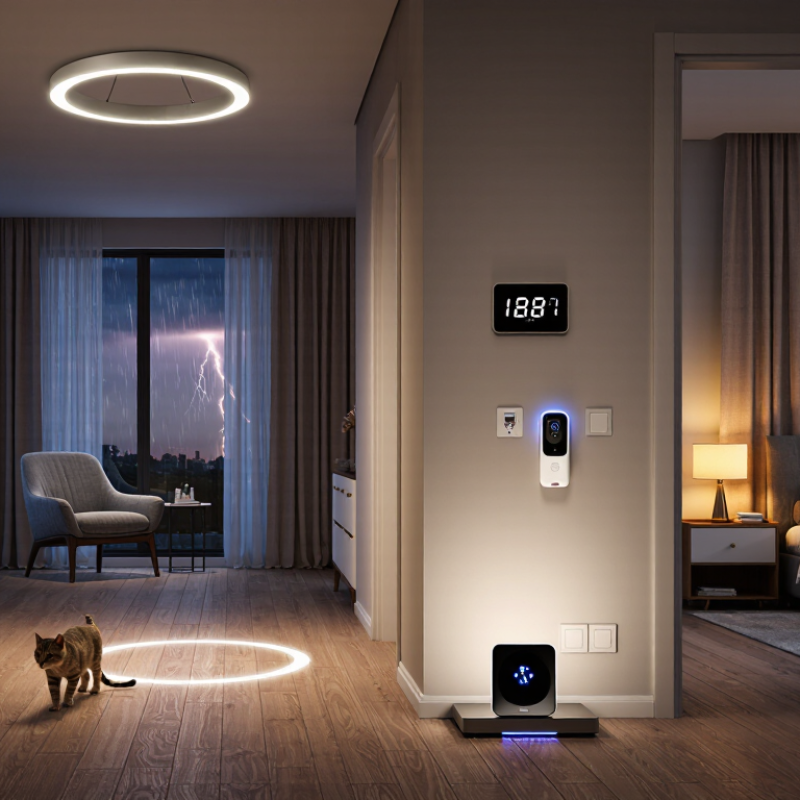
Smart lights are LED bulbs or fixtures connected through Wi-Fi, Bluetooth, or a local hub. They can receive commands from an app, motion sensor, voice assistant, or scheduled routine. This connection explains why a light may turn on without anyone touching the switch.
Automatic activation usually comes from several small settings working together. A motion sensor may detect movement through a doorway. A sunrise schedule may start earlier after a time-zone change. Power interruptions can also restore a light to its previous state. Other causes include geofencing, shared household access, ambient-light sensors, and repeated automation routines. In practical troubleshooting, check the activity log before changing settings. It often reveals the real trigger. I once blamed a faulty bulb, but the cause was an old schedule running twice. Technology is helpful, but not always obvious.
Tips: Disable unused routines and review scheduled actions weekly. Test motion sensors at different distances and angles. Check whether the light activates after a power reset. If activation continues, inspect the switch, wiring, and connection stability with a qualified electrician. Avoid guessing around electrical components. A small detail, such as a neighbor’s shared account or a changed location setting, can create repeated activations. Some explanations remain uncertain until every connected device is checked.
Top 10 Reasons Why Smart Lights Turn On By Themselves?
A light that switches on at 2 a.m. often has a trigger, not a mind of its own. Check schedules, sunrise and sunset rules, and routines shared across connected devices. A time-zone change or daylight-saving adjustment can shift an automation. One overlooked schedule may be enough.
Motion sensors can react to moving curtains, warm air from a vent, or a pet crossing the room. A sensor facing a glossy surface may also detect reflected movement. Hub routines, voice-assistant settings, and another household member’s app can send commands too. Less obvious: some bulbs restore their previous state after a brief power cut. NIST’s IoT cybersecurity guidance stresses secure configuration and controlled access; these are useful checks when investigating unexpected device behavior. The U.S. Department of Energy reports that lighting uses about 15% of the average home’s electricity. That figure does not explain a surprise activation, but it shows why repeated events are worth tracing. Keep a simple log of the light, time, sensor activity, and recent power or network interruptions. Imperfect, but useful. If the log shows no clear pattern, inspect automation histories and update device software before changing several settings at once.
Smart lights can switch on after a delayed cloud command, a duplicated routine, or a voice assistant mishearing television audio. The network often carries the command; it does not explain who intended it. Cisco’s Annual Internet Report projected 29.3 billion networked devices and connections by 2023. More connected endpoints mean more chances for a stale app session, router reconnection, or overlapping automation to confuse the control path. Ericsson’s 2024 Mobility Report forecast 4.5 billion cellular IoT connections by 2029. These figures describe growth, not lighting faults. That distinction matters.
Check the app’s activity history before resetting the bulb. Look for commands near the exact minute it turned on, especially routines scheduled at sunrise or triggered by presence. Then disable voice control briefly and test again.
If the event stops, review linked assistants, room names, and similar-sounding commands. If it continues, remove duplicate schedules and inspect whether the light reconnects after a router restart. A 2.4 GHz signal that drops behind a concrete wall can delay status updates; the app may show yesterday’s state. Logs can mislead. They show a connection, not intent. Change one setting at a time, and note the result; otherwise, troubleshooting can create another mystery.
Top 10 Reasons Why Smart Lights Turn On By Themselves?
How Sensors, Timers, and Automation Rules Affect Light Behavior
A light that switches on at 2 a.m. may be following a rule, not malfunctioning. Motion sensors can react to a person crossing a doorway, but also to warm air movement or shifting sunlight. Some sensors detect changes in infrared heat; others use microwave signals that may pass through thin walls. Timers add another layer. A sunset schedule can drift if its location or time zone is incorrect, while a saved “away” routine may still be active. Small settings matter.
Automation rules can overlap. A motion rule might turn a hallway light on, while a second rule responds to a door sensor. Check the app’s activity history and note the exact time, sensor, and room before changing settings. Pacific Northwest National Laboratory reported average lighting-energy savings of 47% across 14 sites in a field evaluation of networked lighting controls. That figure reflects energy performance, not false triggers, but it shows how strongly control settings shape light behavior. Even efficient systems can be irritating when rules are unclear.
Tips: Temporarily disable one automation at a time. Narrow sensor coverage, adjust the timeout, and confirm the schedule’s location and time zone. Then test the room at night. Keep a brief log; the pattern may be less obvious than you expect.
The scores show an illustrative troubleshooting priority, not measured frequency. Check motion and occupancy sensors, schedules, automation rules, and connected devices first; settings and available features vary by system.
Start with one affected light and note the exact time it turns on. Open its control app and check schedules, sunrise or sunset rules, and “away” settings. Disable anything unfamiliar, then wait a day before changing more settings. Small tests make the cause easier to spot.
Check motion sensors and automation routines next. A sensor near a warm vent, window, or hallway may detect movement or changing heat. Review which devices can trigger the light, and temporarily disable each rule to see whether the behavior stops. Also check shared household access; another person may have created a routine without realizing it. It happens.
If the light still turns on, confirm the phone’s time zone and the light’s connection status. A brief power interruption can sometimes restore a previous state, especially with a wall switch that controls the bulb’s power. Keep that switch on during testing. Restart the hub or router only after checking the app’s event history, if available, so useful clues are not lost. Update the light’s software, then test it alone. Avoid a factory reset as an early step; it can erase settings and make the real cause harder to find. If the problem persists, record the times and settings you tested before contacting support.
| # | Possible reason | Step-by-step check | How to stop it |
|---|---|---|---|
| 1 | Scheduled routine or timer | Open the lighting app and review schedules, timers, routines, and recurring events. Check every day of the week and any separate room or group settings. | Delete unwanted schedules or change their time, days, and selected lights. Check again after saving. |
| 2 | Sunrise, sunset, or location-based automation | Review routines that use sunrise, sunset, or a location. Confirm the home address, time zone, and any offset before or after sunrise or sunset. | Correct the location or time zone, adjust the offset, or disable the routine if it is no longer needed. |
| 3 | Motion or occupancy sensor activity | Check the sensor’s activity history, if available. Look for movement from pets, passing traffic, curtains, heating vents, or changes in sunlight near the sensor. | Reduce the sensor’s sensitivity or detection range, change its position, and shorten the time it keeps the lights on. |
| 4 | Presence detection or geofencing | Review home and away routines, location permissions, and the list of household members whose arrival can trigger the lights. Check whether a phone is reporting the wrong location. | Correct the routine’s location settings, remove unnecessary users or devices, or turn off the arrival action. |
| 5 | Voice assistant or accidental voice command | Check the assistant’s activity or command history for a light-on command. Review linked rooms, groups, and routines that could include the affected light. | Remove unintended routines, correct device or room assignments, and adjust voice activation settings if accidental commands are occurring. |
| 6 | Another shared user or connected device | Review account access, shared-home members, connected apps, and automation logs. Check whether a wall control, bridge, or another household device is sending commands. | Remove access that is no longer needed and disable or edit the automation responsible for the command. |
| 7 | Power interruption or restoration | Note whether the light turns on after a brief outage, a tripped circuit, or someone operating the wall switch. Check the bulb’s power-recovery or “after power loss” setting. | Set the recovery behavior to off, if available. Keep smart bulbs powered at the wall; contact a qualified electrician if power interruptions continue. |
| 8 | Wall switch or smart switch behavior | Check whether the wall switch, dimmer, or control button is being pressed or toggled by an automation. Confirm that the control is compatible with the installed light and configured correctly. | Disable unwanted switch actions and use compatible controls. Do not open or modify mains wiring; consult a qualified electrician if wiring or switch behavior is in question. |
| 9 | Conflicting or duplicated automations | Search all lighting apps and connected services for rules that affect the same light. Compare their conditions and times, including routines copied to rooms or groups. | Keep one intended rule, remove duplicates, and test the remaining automation on its own. |
| 10 | Connectivity, firmware, or device fault | Check the light’s connection and update status. Restart the light and its controller using the manufacturer’s instructions, then observe whether the issue recurs without automations enabled. | Install available updates and reconfigure the device if needed. If it still turns on unexpectedly, contact the device maker’s support or replace a faulty unit. |
A schedule, sensor, shared account, or power restoration may have triggered it. Not random magic.
Yes. Moving curtains, warm air, pets, or reflected movement may activate it. Check the sensor’s angle.
Yes. A sunrise, sunset, or away schedule may shift after location settings change. Small setting, big surprise.
Review the activity log and record the exact time, room, and trigger. Changing everything at once hides useful clues.
Some lights restore their previous state after power returns. Check recent outages and switch behavior. This detail is easy to miss.
Yes. Shared access, another phone, or a connected routine may send the command. Ask everyone.
A motion rule and door rule may activate the same light separately. Disable one rule temporarily and test again.
Update its software and test sensors, schedules, network stability, and power resets. I once blamed the bulb. The old schedule was responsible.
Contact a qualified electrician if switch, wiring, or connection problems seem possible. Avoid guessing near electrical components.
Smart lights can turn on automatically because they respond to more than a direct command. Their built-in schedules, motion or light sensors, voice-control settings, and automation rules may activate them under certain conditions. A useful way to understand why do smart lights turn on by themselves is to consider the whole control chain: a light may receive a signal from an app, a voice assistant, a connected device, or a network routine, even when nobody intentionally switches it on.
To find the cause, check for accidental app taps, outdated or duplicated schedules, shared access, and voice-control misunderstandings. Then review sensor placement and sensitivity, automation conditions, and any routines that link the lights to other devices. If the behavior continues, restart the lights and control hub, check the network connection, and temporarily disable schedules and automations one at a time. These simple checks can help identify the trigger and restore predictable lighting.